Publish Notion docs as a searchable site with code highlighting, article outlines, optional Mermaid diagrams and password protection. Start free with Paper.
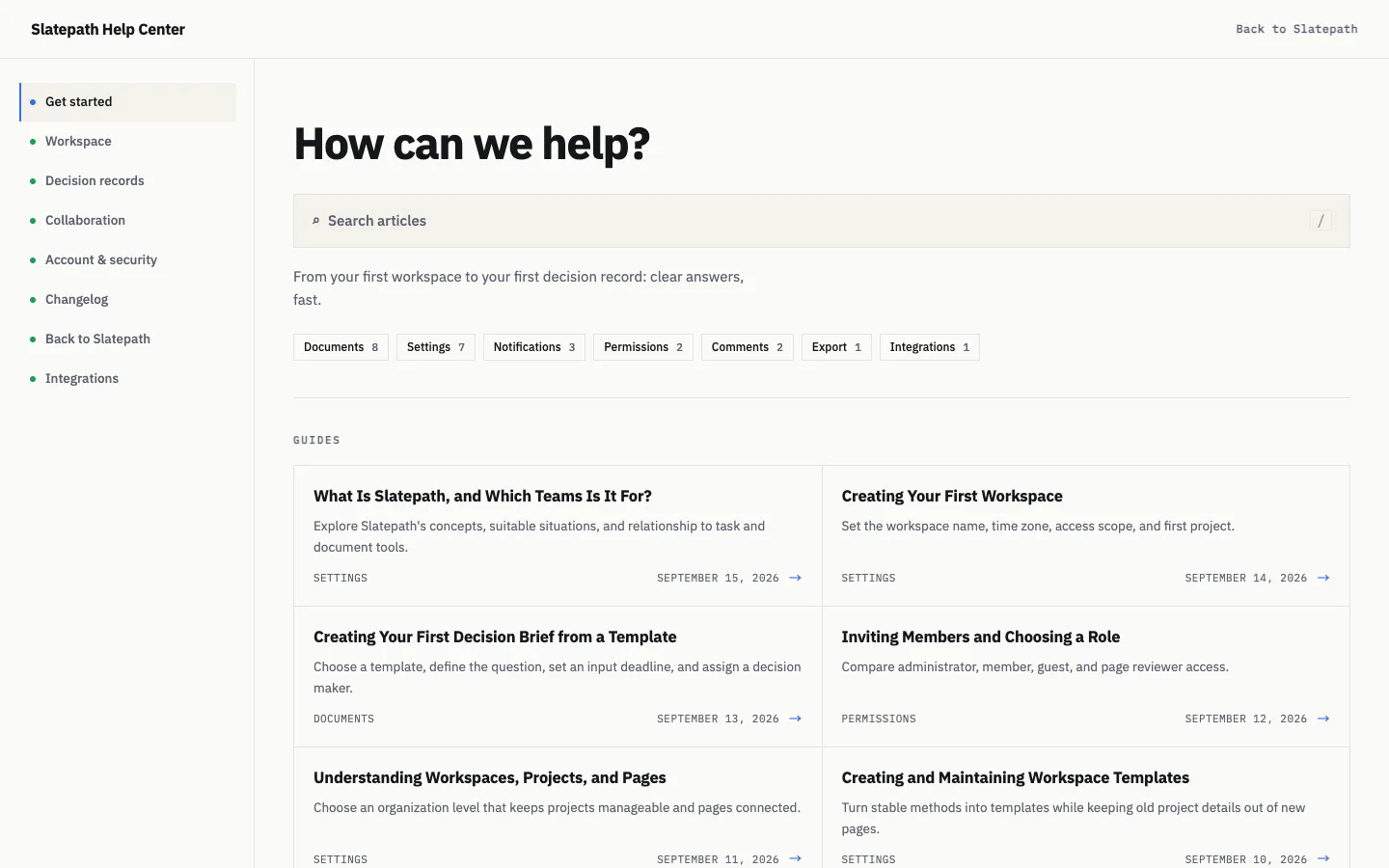
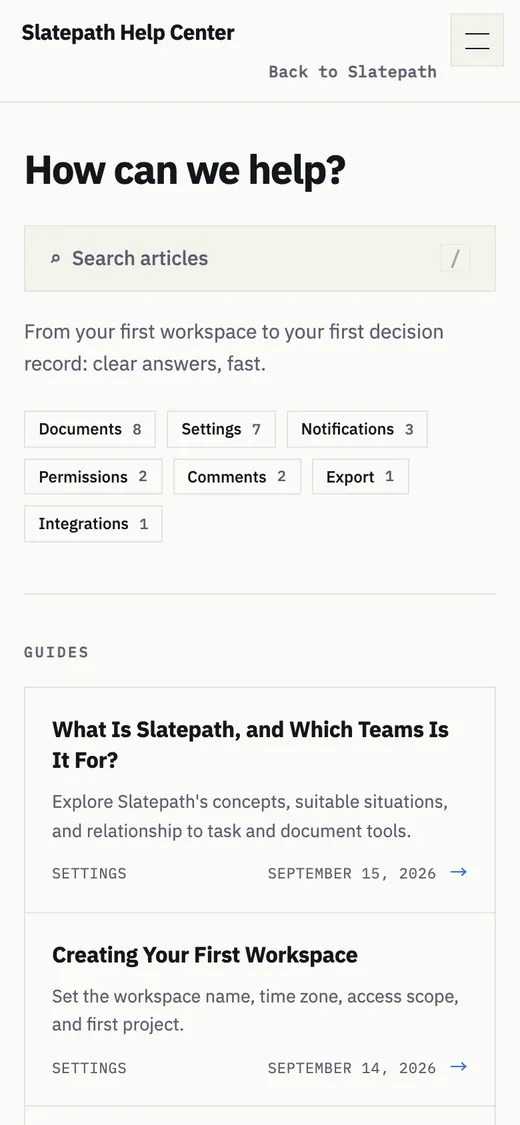
Slatepath’s documentation, in the same look as the product site. The home page starts with search, a sidebar groups the guides by topic, and each guide shows breadcrumbs and its contents.
Getting started, guides, reference and troubleshooting; each doc is one page in a Notion database.
02
Write pages people can scan
Descriptive headings become the page outline, and code blocks are highlighted with a copy button.
03
Connect it and leave drafts out
Map the fields and add “Status is Published”. After an urgent fix, run a sync by hand.
04
Start from Paper
Paper has a search box and contents for long pages; in Theme studio you can move the navigation to a sidebar.
Finding answers
Readers arrive with a question and want the answer fast
Try the search, the outline and the copy button below. They work the way they do on a published docs site.
Field Notes Help
Getting started › Install
Install and first run
Install the command-line tool, then connect your workspace.
$ npm install -g fieldnotes
The full guide
Every step in detail, with what to check before you share the site and when another tool fits better.
Organize docs around reader tasks
People open documentation with a task in mind: set something up, use a feature, fix a problem. Organize pages around those tasks rather than around your team's internal structure. Getting started, guides, reference and troubleshooting is a pattern most readers recognize.
In Notion, keep each doc as a page in a database with a title, a slug, a short summary and tags for its section. A post source lists entries by published date; for a fixed reading order, link each page to the next step, or publish the database as a docs collection, which can sort by an Order field and group pages by section.
Write pages that are easy to scan
Start each page with what it helps the reader do. Use descriptive headings: long pages get an outline, so readers can jump to the part they need. Keep steps numbered and short, and put warnings before the step they apply to.
Code blocks are syntax-highlighted and have a copy button, so paste real, working commands. Switch on Diagrams in Theme studio and Mermaid code blocks render as diagrams, which keeps architecture and flow charts editable as plain text in Notion. Tables suit reference data, but test wide tables on a phone.
Paper, the starting theme suggested for this page. Change any part of it in Theme studio.
Start from Paper
The Paper theme suits documentation: a steady reading column, readable type and an outline for long pages. The Paper theme page shows desktop and phone previews and example change requests.
In Theme studio, ask for what docs need: a wider column for code-heavy pages, a compact header, section links in the navigation, or a distinct style for warnings. Preview your longest page and one with a large table before applying the version.
Keep the navigation short: a link to getting started, the three or four sections readers use most and a way to contact you. Readers who arrive from search land deep in the docs, so every page should make the next step obvious without relying on the homepage.
Connect, sync and test the path to an answer
Connect Notion and share the docs database; it doesn't need to be public. Map the fields and add a filter rule such as “Status is Published” so drafts stay out. Free sites sync once a day, Personal and Pro hourly and Studio every 15 minutes, and you can sync on demand after an urgent fix.
Before sharing, follow a setup guide from start to finish while signed out. Search for the words a new user would type. Check that code wraps or scrolls, tables scroll on phones, and every page links to a sensible next step.
Control who can read
Public docs help people find answers through search engines, so most pages should stay open. For internal or customer-only pages, password-protect individual pages on Personal and above. Never put secrets such as API keys in the source pages, protected or not.
If public docs and an internal handbook need different access, run them as two sites. Pro includes up to five sites and five members.
Keep docs current
Docs age quickly. When a feature changes, update the Notion page and sync; if you rename a page, a redirect keeps old links working. Use per-article SEO titles and descriptions to say exactly what each page answers, so search results are clear.
Site analytics show which pages people read most, which is often where to improve first. Give readers a way to report a problem, such as a contact link at the end of each page. On Pro, you can publish docs in up to three languages, with AI translation to get each one started.
Where a dedicated docs tool fits better
Newmade doesn't generate API references from code, keep separate doc versions per release, or build from a Git repository. If you need versioned docs, docs-as-code review or an interactive API console, use a dedicated documentation tool. Newmade fits help centers, guides, handbooks and product docs that your team already writes in Notion.
The advantage there is speed: the people who know the product can fix a page in Notion without a pull request, and the change is live after the next sync.
Questions before you start
Is there site search?
Yes, when the theme turns it on: Paper includes a search box (press / to focus it) and an outline on long pages, and docs collections have their own search box.
How do code blocks look?
Code is syntax-highlighted with a copy button in all starter themes; switch on Diagrams to render Mermaid code blocks.
Can I restrict some pages?
Yes, with password protection on Personal and above. For content that should never be published, use a filter rule or keep it in pages you don't share with Newmade.
How quickly do Notion edits appear?
Free syncs once a day, Personal and Pro every hour and Studio every 15 minutes. You can also run a sync manually.
Can I publish docs in more than one language?
Yes, on Pro (three site languages) and Studio (eight). Newmade can translate pages automatically with AI; review the result before publishing technical instructions.