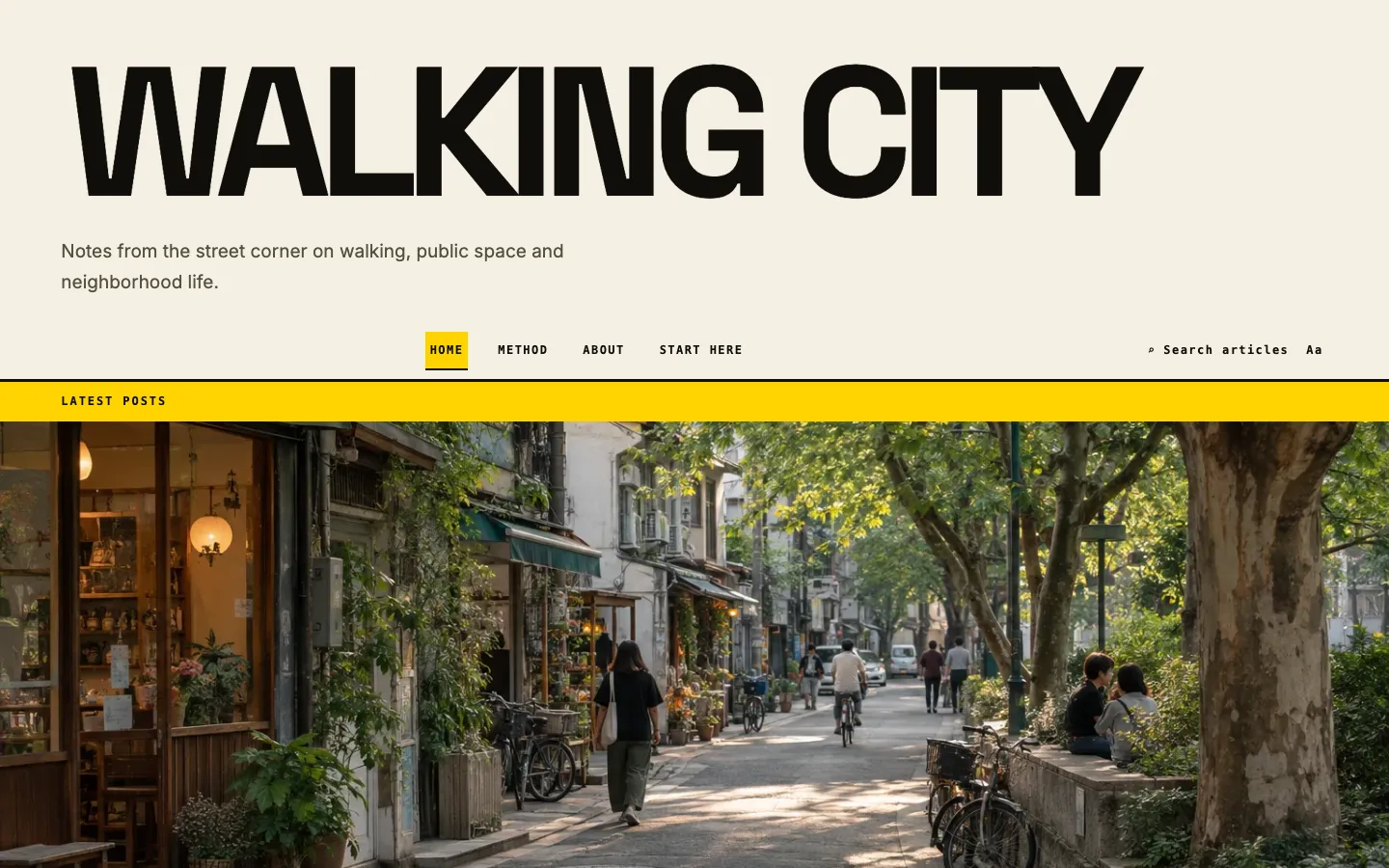
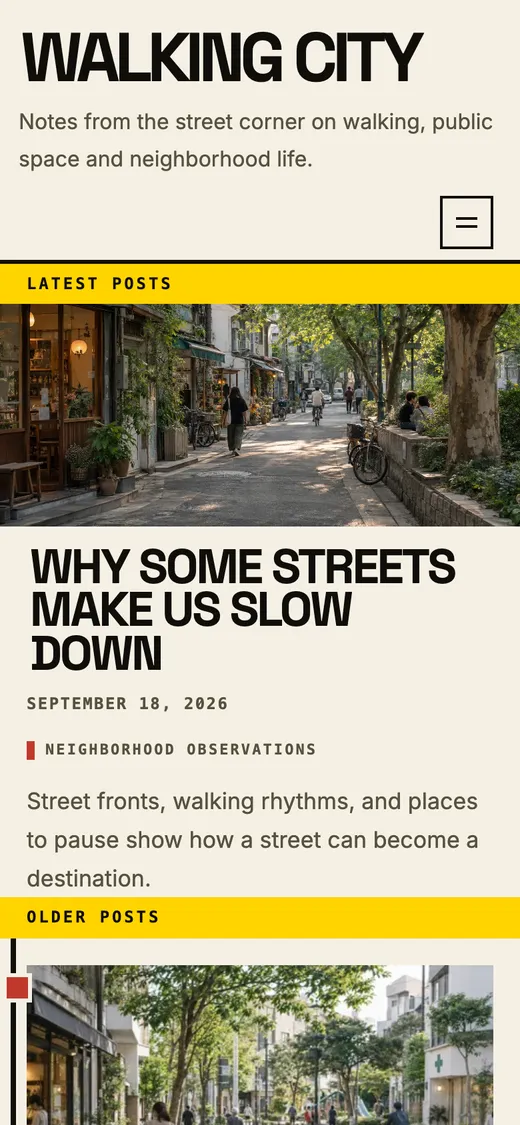
A blog about walking, public space and neighbourhood life, designed like a transit map: a poster-size masthead, crosswalk yellow and the essays listed along a route line. Readers can set light or dark, text size and column width.
Every step in detail, with what to check before you share the site and when another tool fits better.
Connect, choose a theme, add your domain
You can have a blog running on a Newmade subdomain in one sitting, then move it to your own domain when it's ready. Free sites can test every step except the domain.
Connect Notion. Sign in with Notion and share the database that holds your posts. It doesn't need to be public.
Choose a theme. Start from Paper or another built-in direction and preview it with your own articles before applying it.
Add your domain (Personal and above). In the site's domain settings, enter the hostname, create the DNS records shown and wait for verification and HTTPS.
Keep the writing workflow familiar
A Notion blog works best when publishing doesn't add another place to maintain the same article. Keep drafts, research and edits in Notion, and connect the database you publish from. The website gets its own typography, navigation and reading layout while the source stays familiar.
Decide who the blog is for and what should happen after a reader finishes a post. A personal journal, a product publication and a research notebook may use the same writing tool but need different navigation. Name your topics clearly, write a short About page and choose one useful next step. Start with a few complete posts rather than empty topics.
Paper, the starting theme suggested for this page. Change any part of it in Theme studio.
Prepare a post database and a complete first article
The starter below includes a CSV post database and a Markdown article outline. Import the CSV into Notion and set the property types: Name as the title, Slug and Summary as text, Published date as a date, Tags as multi-select and Status as a select. Tags label each post’s topics (they don’t get pages of their own); there is no separate Category field.
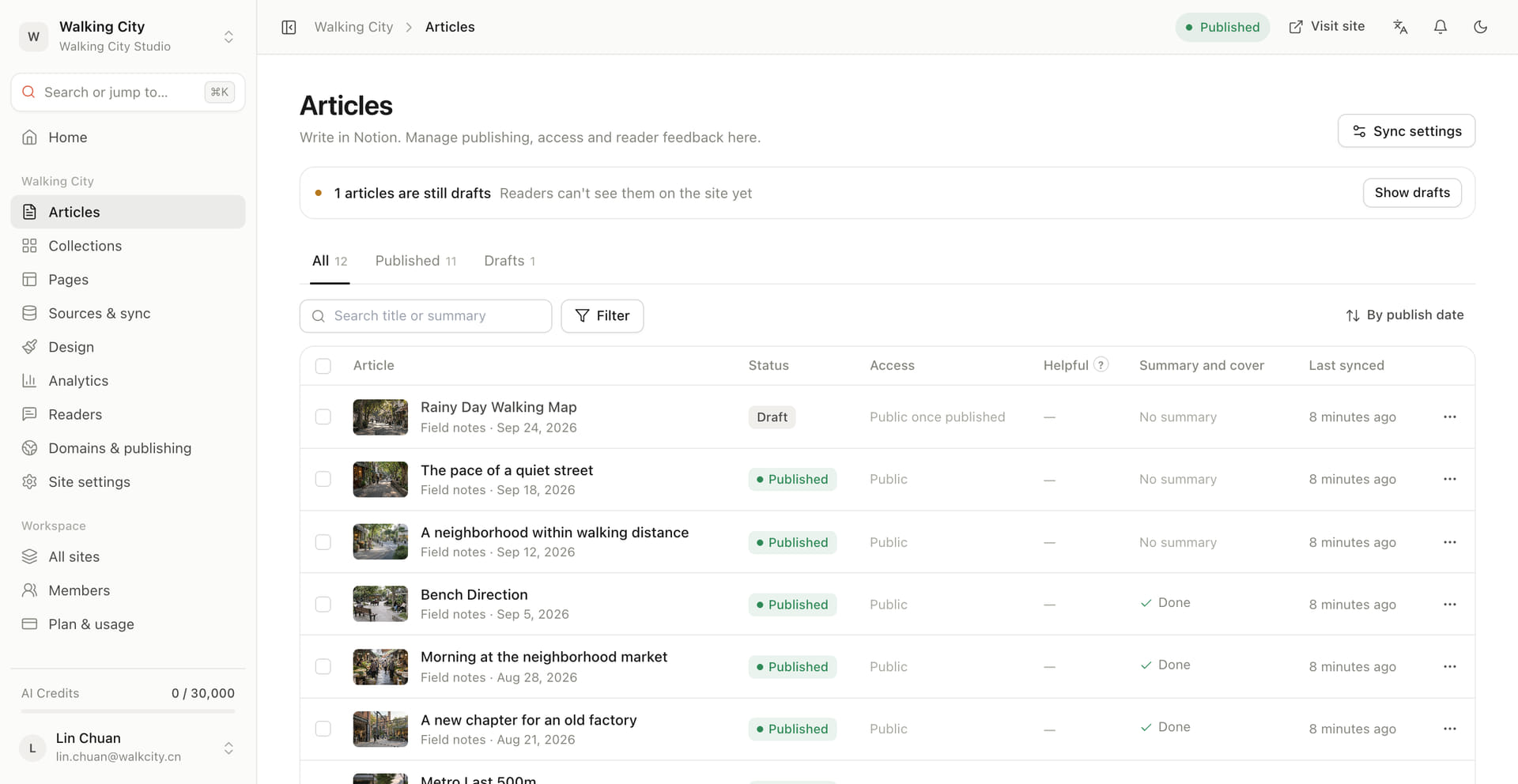
When you connect the database, match Name, Slug, Published date, Summary and Tags in Field mapping. Then add the filter rule “Status is Published” in the content source settings. Without it, every row syncs, including the sample Draft rows. Switch one sample to Published, sync, and check that it's the only post on the site before replacing the samples with your own writing.
Use headings that explain the article's progression, and give images useful descriptions. Choose stable slugs early: a descriptive address can stay the same when you improve a headline later.
Connect Notion and verify the first sync
Create a workspace and site, connect Notion and select the database or pages you've shared with Newmade. Run a sync, then check the first few records in the content workspace: title, date, cover, path and publication state. Read one complete article, including lists, tables, links and code blocks.
Make a small edit in Notion and sync again to confirm the update path. Sites sync automatically, once a day on Free and every hour on Personal and Pro, and you can run a sync on demand. Article SEO edits made in Newmade are kept across syncs, so the source text won't overwrite them.
Shape a readable blog with Paper
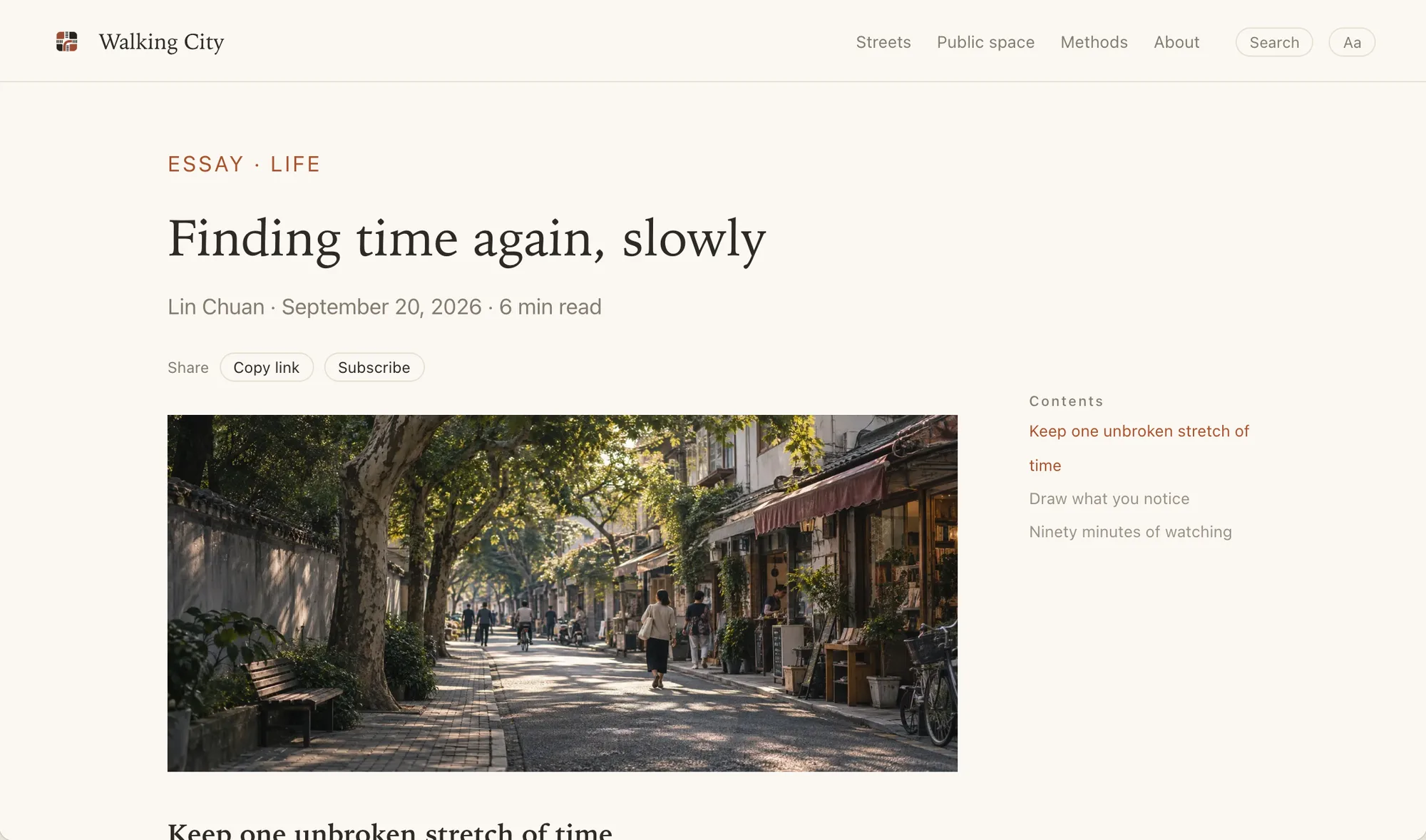
Paper is a quiet starting point for essays and long reads. The Paper theme page shows desktop and phone previews, the demo's components and example requests. Walking City, the example blog on this page, is a published Newmade site with long posts, contents and reading settings; it's a Newmade sample, not a customer blog.
Technical posts get syntax-highlighted code with a copy button and an outline for long articles; switch on Diagrams in Theme studio to render Mermaid code blocks. Describe design changes in terms of reading: make metadata smaller, show the newest essay above the archive, or keep images wider than the text. Preview a short note and your longest post before applying a version. Applying a built-in theme doesn't use AI credits.
Publish and test the RSS feed
Publish on the Newmade subdomain first and open the site while signed out. Follow a post from the homepage, try the navigation links and find your way back to the archive.
The feed lives at /rss on your site, for example https://your-site.example/rss. It lists every Published post that passes your filter rules. Password-protected posts appear with their title and a locked excerpt; the full text stays behind the password. Add the feed to a reader and confirm that the posts you expect are there.
Link to the feed from your navigation with a clear label such as Follow by RSS. RSS lets readers follow without an account; it isn't an email newsletter.
Configure article SEO and redirects
In each article's settings, review the SEO title, description, social image, canonical address and noindex option. Use a title that names the subject and a description that tells a reader what they'll learn. Override the canonical address only when you know why, for example when the article first appeared elsewhere. Check the published page after saving.
Article bodies are rendered on the server, and every site gets a sitemap and robots.txt. Public articles include Article and breadcrumb structured data; noindex articles are left out of the sitemap. These are foundations for discovery, not a ranking promise. When migrating, keep old post paths or add 301 redirects, and test each one, including links to older articles.
Move an existing blog to your domain
If readers already know your address, change one thing at a time. Keep the old site running, publish on the Newmade subdomain and test the redirect map before touching DNS. Write down the old DNS settings so you can roll back.
After connecting the domain, open an article there while signed out and check the canonical address, the sitemap and the links in your RSS feed. Then submit the sitemap in your own Search Console property and inspect a representative article. Indexing takes time, so check progress over weeks rather than days.
Keep readers coming back
Site analytics show which topics attract readers and where they enter the blog. Many arrive on a single article from search and never see your homepage, so make the author, topics and next article easy to find from any post. Fix broken links and outdated instructions as you find them.
For email subscriptions or comments, choose a separate provider. Personal and above can embed third-party code, but Newmade doesn't offer a native newsletter or paid memberships. A clear archive, a working feed and useful articles usually matter more than a row of widgets.
A starter you can import into Notion
Download the database CSV, article outline and instructions. Import the CSV, choose property types and map supported fields in your content source. The sample rows are marked Draft: add the filter rule “Status is Published” to the content source so drafts stay private.
At /rss on your published site. It lists every Published post; password-protected posts show their title and a locked excerpt.
Can I use my own domain?
Yes, from the Personal plan at $6 a month. Add the domain, create the DNS records shown for your site and wait for verification and HTTPS before sharing it.
Will my drafts appear on the blog?
Only if they sync. Add a filter rule such as “Status is Published” to the content source; without one, every row in the database is published.
Do manual SEO edits survive sync?
Yes. Supported article SEO overrides are kept across syncs. Check the published title, description, canonical address, social image and noindex setting after saving.
Does RSS include email subscriptions?
No. RSS is for feed readers. For email, use a separate service; on Personal and above you can embed its signup form as an iframe or script widget.